


TT's Home
Obtaining idl:
Student edition
currently 55pounds
Other Idl tutorials:
Everything You Always Wanted to Know About IDL
Colorado
Robert W. O'Connell (Virginia)
STSci
Goddard
Prof. J. D. Monnier
Why
is my nice tutorial not here?
Tutorial example
Interactive widget
Idl resources
There is a wealth of useful idl programmes, and generally useful tips available.
Look here for starters.
Coyote's guide to idl
Markwardt IDL Library
Rob Dimeo's IDL Programs
More resources
Even more resources
IDL and emacs
idl wave (syntax high-lighting)
IDL and TeX
textoidl
Data formats
idl and FITS
idl and hdf5
What is FITS?
What is HDF5?

What is IDL, and why would I want to use it?
An Interactive Data Language for analysis and the visualisation of scientific and engineering data, according to its makers RSI . Althoug it is a proper language in which you can write a programme, you can also execute the statements interactively (IDL!), which makes it easy to write and debug. And there is sophisticated graphics support, so you can compute, and look at the results, within the same programme.
- Easy to learn syntax (honest), vector statements, commands can be run in programme mode, and in interactive mode. Easy to convert working programme later to Fortran 90, say.
- No need to compile, hence *very* portable.
- Lots of built-in functionality (plotting, maths but also scripting).
- Even more almost ready programmes available on the web. (Contribute your own!).
- So what's the catch?
- It is commercial software :( But gnu are making a version under gnu license ( gdl ) :)
- Since it is not compiled, calculations tend to be slower than Fortran or C (especially if you use indexing in a loop say). But this can still be offset by the fact that it takes much less time to develop/debug the code. And it is easy to translate to F90.
- I am not convinced yet: show me a simple example. OK: try
- %idl
- IDL> x=findgen(100)/100.*2.*!PI
- IDL> plot,x,sin(x),xtitle='theta',ytitle='sin(theta)',title='my first idl plot '
- Thanks! But this is really simple stuff. How about something more impressive? OK: try the demo: %idldemo
- IDL is a proper programming language. Some of the idl built-in functions are written in idl, others are compiled. You can see how the ones that are written in idl work. Where are they? Start by doing % which idl, to get a hint where idl is installed. Look around there for idl programmes, demo, and other examples.
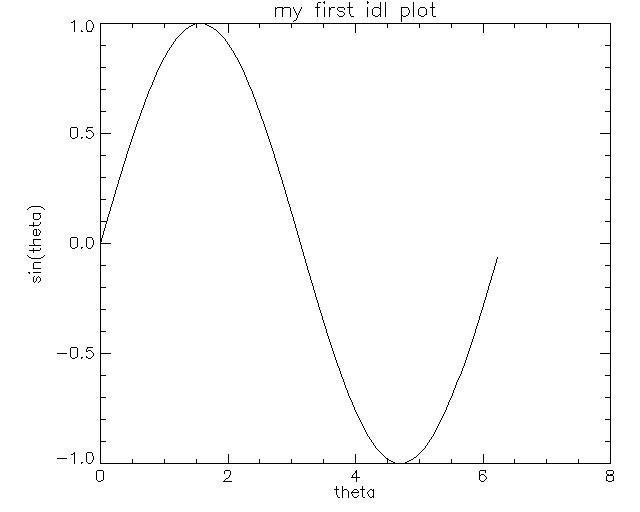
Idl in Durham
Idl is installed on starlink and cosma computers (but not on the cdml cluster). When you start idl it tells you at the top which version you are using, I will assume you use version, 6.2 or 6.3. IDL is reasonably downward compatible. From your linux terminal, log-on to your own workstation using ssh -X user@workstation.dur.ac.uk. If you do not have your own desktop computer yet, use nova.phyast.dur.ac.uk. As a last resort, there is idl on the linux desktop you are currently using. To make sure X-forwarding worked, try opening a remote terminal, %xterm.
The aim of this tutorial.
The aim is to complete a simple but useful programme written in idl. Spend the first sessions on working through the examples discussed below (work in pairs). The assesment is based on two small projects that you should work on. The first is "homework", and you should submit your solutions to me (please create a google document), the second is a project which you should complete in pairs. They are descibed in more detail
- home work: creating a histogram of data, plotting error bars, and fitting the data with a simple function (deadline November *25th*)
- group project Work in pairs to complete one of the three tasks. You need to mark each other's projects, as described in the write-up. The last hour of the tutorial will be devoted to demonstrating your codes to the others.
Getting Started.
- Below are some simple things for you to get started. They come as simple texts to download and get started. It is probably a good idea to do them in order.
- Is there no idl manual I can read? There is a very good reference manual. To get help on plot, say,
try
- %idl
- IDL> ?plot
- simple maths.
- simple plots
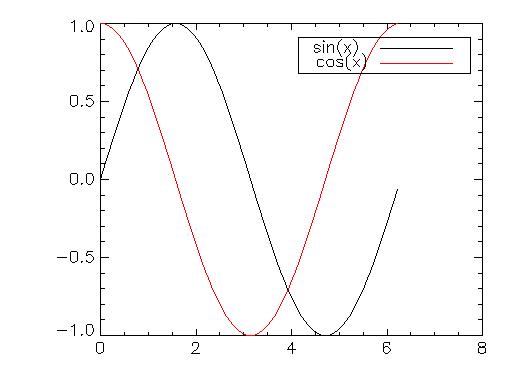
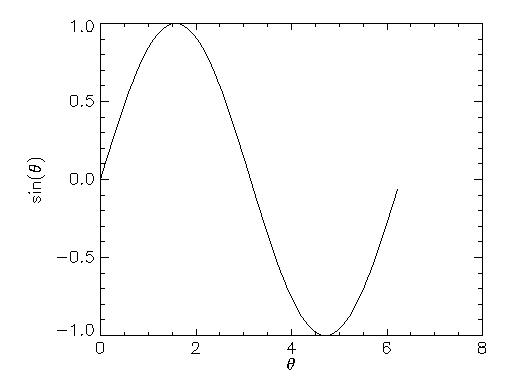
For example, learn to make this simple plot , or the same in colour , with Greek letters or some more colours , and a simple contour plot . - A simple
histogram . Save this in a file myhist.pro, and run it as IDL> .run myhist
- Interactive usage, programs /functions, batch scripts
- The fact that you can simply give interactive commands to do maths and make plots is very powerful. However sometimes you may find you are doing the same set of commands many times. If that is the case you may want to write a programme or a batch script.
- Batch scripts allow you to execute a whole set of interactive commands, which you've collected in a file. Copy this one , then execute it using IDL> @mybatch. (This assumes you've run the contour plot before).
- In interactive mode, you can only enter one line at a time. You
need to tell idl that your command is not finished yet, as in the case of the
for loops. This is the origin of the $&s. Discover the difference
between :
IDL> for i=1,10 do begin
IDL> print,i
IDL> endfor
and
IDL> for i=1,10 do begin $
IDL> & print,i $
IDL> & endfor
You can avoid this by writing a programme . Here is something for you to discover: what is the difference beween batch2.pro and the next programme, mycontour.pro.? - Programmes allow more functionality. Look at this one , and try it out by typing IDL> mycontour. You'll notice that
- It does not have the & $ at the beginning/end of each line in the for loops
- **$%! It does not work! You need to tell idl you've made a new programme. Do IDL> .run mycontour
- ***@@@@$$$$££££*** It still does not work!!
This is because "npts" and "nsig" which we previously set in the interactive idl session, are no longer defined
within the programme. So uncomment the npts=, and nsig= statement (see how to write comments?), compile, and run again. Now it works. - Note that the previous version stopped in mycontour and did not know nsig. If an idl programme goes wrong, it stops in the offending routine. This is great for debugging, because you can immediately examine variables. Use IDL> retall to reset idl to its original state.
- Well now it works, but it is in black and white. This is because you've loaded the colour table in your interactive session, but not in the programme. You'll need to do that too. I usually load my favourite colour table using @colors. I put colors.pro in my $HOME/idl/pro/colors.pro
- You could pass npts and nsig into the programme, like so . Pass them like IDL> mycontour2,100,5
- Functions have return values, for example this one . Try IDL> print,add(5.) versus print,add(5).
- Look in the index to find which other . (dot) commands exist.
- idl environment variables: set those in your .cshrc script. in tcsh setenv IDL_PATH .:+/home/tt/idl:"<IDL_DEFAULT>"
- IDL_PATH tells idl where to look for programmes or
functions (default .pro). I've set it to
- % echo $IDL_PATH
- .:+/home/tt/idl:<IDL_DEFAULT>
- When you invoke idl, it will execute all commands in $IDL_STARTUP which I've set to /home/tt/.idl_startup_linux. For example you could use this
- IDL_PATH tells idl where to look for programmes or
functions (default .pro). I've set it to
- Getting data into idl.
- Ascii files
- (FORTRAN) Binary files You'll need to compile and run the following F90 programme .
- In the previous example, try to write the file on a sun, then read it on a pc, or vice versa. Since sun and pc have different endianess, you need to specify /swap_endian to properly read the files. It illustrates the extreme limitations of binary io. Examine the equally extreme power of combining idl with hdf5: start by downloading (and unzipping) this Gadget3 snapshot file . So how do you read it? Try IDL> d = h5_browser('snap_048.hdf5')
- I am an observer, and not interested in Gadget! OK: find your favourite spectrum/image in fits, then try to read it. (Don't write your own, just find someone that has written fits_io in idl for you!)
- Save/restore. You can save all, or some of the variables in your current session for later use using save/restore. Try it!.
- Getting hard copies.
- See here how I obtained the jpg files you've seen. The "tvrd" command reads the current window in a buffer: it is a bitmap of the window (Try it!). You can display that buffer using tvscl, for example, or use write_jpeg to copy it into a jpeg. What does the Dialog_Pickfile do?
- Thanks but I would like postscript output
- Countour plots : a worked example that produces this colour scaled 2D image with contour levels superposed
- If you make many programmes it can be confusing to know which particular file contains the subroutine/function you are executing. use file_which('myroutine.pro') to point you to the correct file
- If you've made it up to here: well done! But don't stop (yet)! To benefit from what you've learned so far, you should really practise idl, so do make the effort of completing one of the exercises suggested below. Ask me when you get stuck.


A veritable treasure trough of tips and examples can be found here
More Exercises
Try some, or all of these.
- Find how to make multiple plots on a single page. (Easy: use google to find the answer!)
- Find how you can ask idl to zoom in a window. And how do you get the cursor position?
- Find how you can ask idl to occasionally check with you whether it should still continue. ( Big hint )
- You will need to use structures for the Stellar Structure lessons. See some examples here
- How can you pass variables between programmes? May be by using common?
- Design your own widgets
- Find all files in your directory, and list the ones that have a specified extension (Hint: use spawn to interact with the operating system.
- Produce a lot of jpegs, and combine them into a movie
- Make some 3D plots
FAQ
None yet: contribute your own (preferably with answers!), and I'll add them here. Thanks.